
We're Here to Help
At LaValle Telephone Cooperative, support isn't just a department—it's a commitment. When you call, you're talking to real people who know our systems inside and out, and who genuinely care about solving your problem quickly.
We understand that reliable communication is essential to your daily life. That's why we're dedicated to making sure your phone, internet, and TV services work seamlessly, and that help is always just a phone call away.
Multiple Ways to Get Support
Call Our Local Team
Speak directly with our support team who know your area and your needs.
Call 608-654-5162Self-Service Resources
Browse our guides for email setup, internet troubleshooting, and common issues. Many problems can be solved in minutes.
Online Inquiry
Submit your question or support request online, and our team will get back to you promptly during business hours.
Local Support Team
Real people from our community who understand rural connectivity challenges and are committed to your satisfaction.
Quick Solutions
Most issues are resolved quickly with our knowledgeable team. We prioritize getting you back online fast.
Reliable Service
We stand behind our services with the commitment and reliability you expect from a cooperative that's part of your community.
How to Reach Us
Primary Phone:
608-654-5162Call us with questions about service, technical issues, or to request support.
Location:
LaValle Telephone Cooperative
La Farge, Wisconsin
Serving southwest Wisconsin communities including Cashton, Coon Valley, Blue River, Elroy, and Rockland.
Email Setup Guides
Setting up your mwt.net email doesn't have to be complicated. Follow our simple, step-by-step guides for your device or application.
iPhone & iPad Setup
- 1. Open Settings and go to Mail, Contacts, Calendars
- 2. Tap "Add Account" and select "Other"
- 3. Enter your full mwt.net email address
- 4. Select "IMAP" for mail type
- 5. Use server settings below for incoming and outgoing mail
Android Device Setup
- 1. Open Gmail or your email app
- 2. Tap the menu icon and select "Settings"
- 3. Choose "Add account" or "Add another account"
- 4. Select "Other (IMAP)" as account type
- 5. Enter your mwt.net email and password
Microsoft Outlook Setup
- 1. Open Outlook and go to File > Add Account
- 2. Enter your full mwt.net email address
- 3. Select "IMAP" when prompted for account type
- 4. When automatic setup fails, click "Change account settings"
- 5. Enter the server settings provided below
Server Settings (All Devices)
Incoming Mail (IMAP):
Server: mail.mwt.net
Port: 993
Security: SSL/TLS
Username: your full email address
Outgoing Mail (SMTP):
Server: smtp.mwt.net
Port: 587
Security: TLS
Username: your full email address
Webmail Access
Access your mwt.net email from any web browser without configuring your device:
- 1. Visit webmail.mwt.net in your browser
- 2. Enter your full mwt.net email address
- 3. Enter your email password
- 4. Click Login to access your email
Common Setup Issues
Password not accepted?
Double-check your password is correct. If you've forgotten it, contact support at 608-654-5162.
Can't connect to server?
Verify you're using the correct server addresses (mail.mwt.net for incoming, smtp.mwt.net for outgoing). Check your internet connection is working properly.
Still having trouble?
Our support team is ready to help. Call 608-654-5162 or email your question to us.
Email Security Notice
If you're experiencing spam or unwanted emails, our support team can help you configure filters and security settings. Contact us at 608-654-5162 for assistance.
Internet Troubleshooting
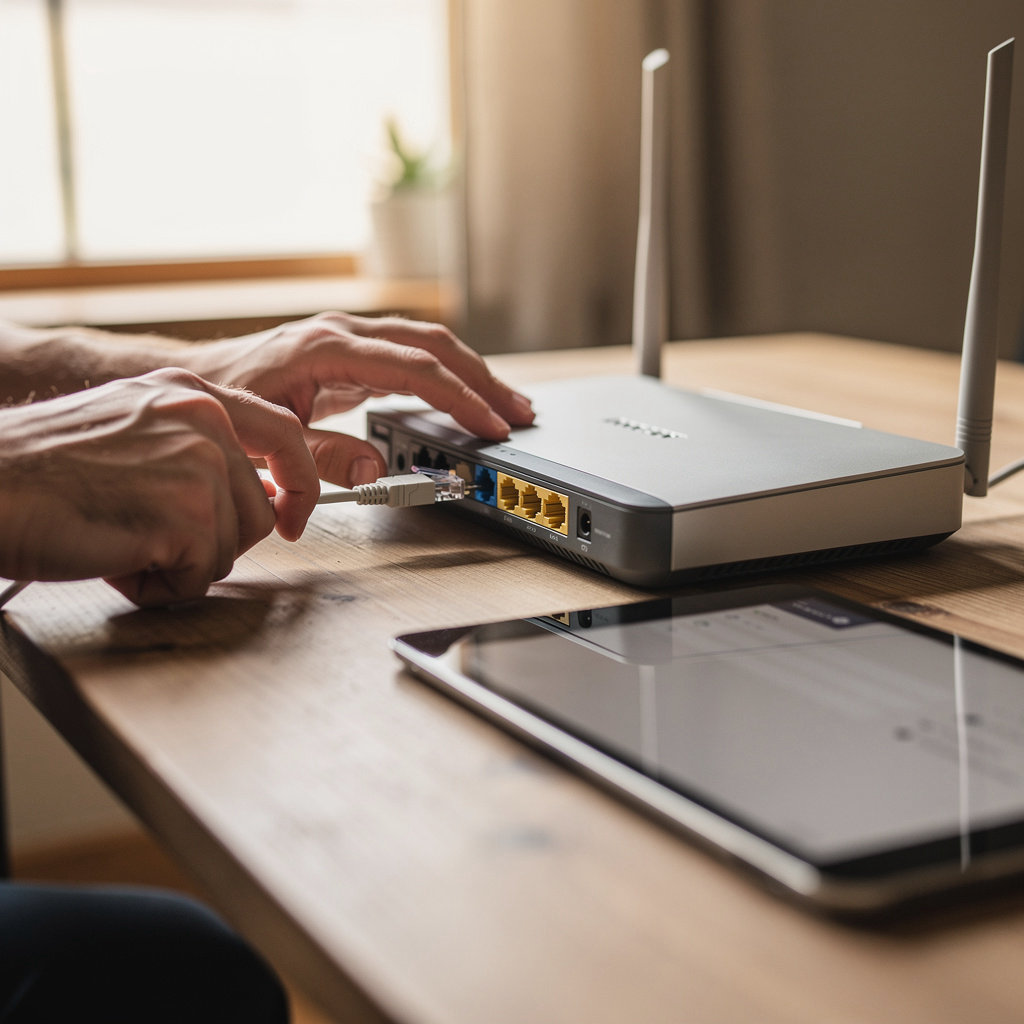
Most internet issues can be resolved with a few simple steps. We've gathered the most common problems our rural Wisconsin customers experience and the practical solutions that work. Follow these guides first—if you need additional help, our local support team is always ready to assist.
My Internet Connection Is Slow
Slow speeds can happen for several reasons. Try these steps in order:
- Restart your router: Unplug the power cable from your router, wait 30 seconds, then plug it back in. This clears temporary memory and often restores speed.
- Check your distance: Move closer to your router. Physical distance and obstacles (walls, metal objects) can weaken your signal. If you're far from the router, consider a WiFi extender.
- Reduce connected devices: Too many devices using WiFi simultaneously slows everything down. Disconnect devices you're not actively using.
- Check for background activity: Large downloads, video streaming, or software updates running in the background consume bandwidth. Pause or cancel these activities.
- Test your speed: Use a free speed test tool like speedtest.net to see your actual connection speed. This helps us understand what's happening if you call for support.
If speeds remain slow after these steps, contact our support team at 608-654-5162.
My Connection Keeps Dropping
Frequent disconnections are frustrating. Here's how to fix this issue:
- Power cycle your equipment: Unplug your modem (the device connected to the wall) and your router. Wait 30 seconds, then plug in the modem first. Wait 2-3 minutes for it to fully restart, then plug in your router.
- Check cable connections: Make sure all cables going to your modem are firmly connected. A loose cable can cause drops. Gently reseat each connection.
- Move away from interference: WiFi signals can be disrupted by microwave ovens, cordless phones, and baby monitors. Keep your router away from these devices.
- Update your router firmware: Check your router's settings for available updates. An outdated router can cause connection instability.
- Reduce WiFi congestion: If you live in an area with many WiFi networks, your router might be on a crowded channel. Most routers have a settings page where you can change the WiFi channel.
If the connection continues dropping after these steps, please call us at 608-654-5162. There may be an issue on our network that needs professional attention.
My Router Isn't Working
Router problems often have simple solutions. Try these steps:
- Check the power: Make sure your router is plugged in and powered on. Look for lights on the front—they should be lit. If there are no lights, try a different power outlet.
- Look for lights: Different lights mean different things. A solid or blinking light usually means it's working. If lights are off or red, there's a problem.
- Restart the router: Unplug it for 30 seconds, then plug it back in. Let it fully restart (this takes 2-3 minutes). All lights should stabilize.
- Reset the router: If restarting doesn't work, look for a small reset button (usually recessed). Hold it for 10 seconds with a paperclip or small tool. This erases all settings, so you'll need to set up your WiFi again.
- Check your modem connection: Make sure the cable from your modem to your router is connected. If it's loose, reconnect it firmly.
Note: If you're renting your router from us, we can help troubleshoot or replace it. Call 608-654-5162.
When to Contact Support
If you've tried the troubleshooting steps above and still have issues, our local support team is ready to help. Contact us if you experience:
- No internet connection at all
- Consistently slow speeds even after troubleshooting
- Frequent disconnections that continue after power cycling
- Error messages on your modem or router
- Connection issues affecting only certain devices
- Problems you're unsure how to diagnose
Have this information ready when you call:
- Your account number (on your bill)
- Your modem model and serial number
- When the problem started
- What lights you see on your modem and router
- Any error messages you've seen
Need Additional Help?
Our local support team knows rural internet challenges and is ready to help with any issues our troubleshooting guides don't cover. We're here for you.
Contact Support
When you need help, our local support team is ready to assist. Reach out using any method that works best for you.
Call Our Support Team
Get immediate assistance from our local, knowledgeable staff who understand your needs.
Call 608-654-5162What to Have Ready
- • Your account number or phone number
- • Description of the issue you're experiencing
- • Any error messages you've seen
- • Recent changes to your setup (if applicable)
Support Hours
Our local support team is available during regular business hours to help with your questions and technical issues. For urgent matters outside business hours, you can still reach us by phone.
For the best response time, call during business hours or submit an online inquiry for non-urgent matters.
Send an Online Inquiry
Prefer to send a message? Use our online form to submit questions or support requests. Our team will respond promptly during business hours.
Ideal for: Non-urgent questions, service availability inquiries, general feedback
Response time: Within one business day during regular hours
Why Our Support Matters
Local Team
Real people in your community who understand rural connectivity challenges and care about solving your problems.
Quick Response
We prioritize getting you back online quickly with solutions that actually work for your situation.
Expert Knowledge
Our team knows our systems inside and out and can troubleshoot effectively and confidently.
Don't wait—our support team is ready to help you get back on track.
Call 608-654-5162 Now